
KAKUCUT GUIDE
How to add automatic captions
to an iPhone video.
Use KakuCut to add captions on iPhone: import your video, choose the language spoken in it, and tap Generate captions. Review the words and timing, then style your captions and export an MP4. When supported by your device and system, transcription runs on-device.
Updated October 16, 2026 · By KakuCut
1. Import your video
Open KakuCut and create a new project with a video from your photo library. Start with a short clip with clear speech. If the original is in iCloud Photos, let it download before editing.
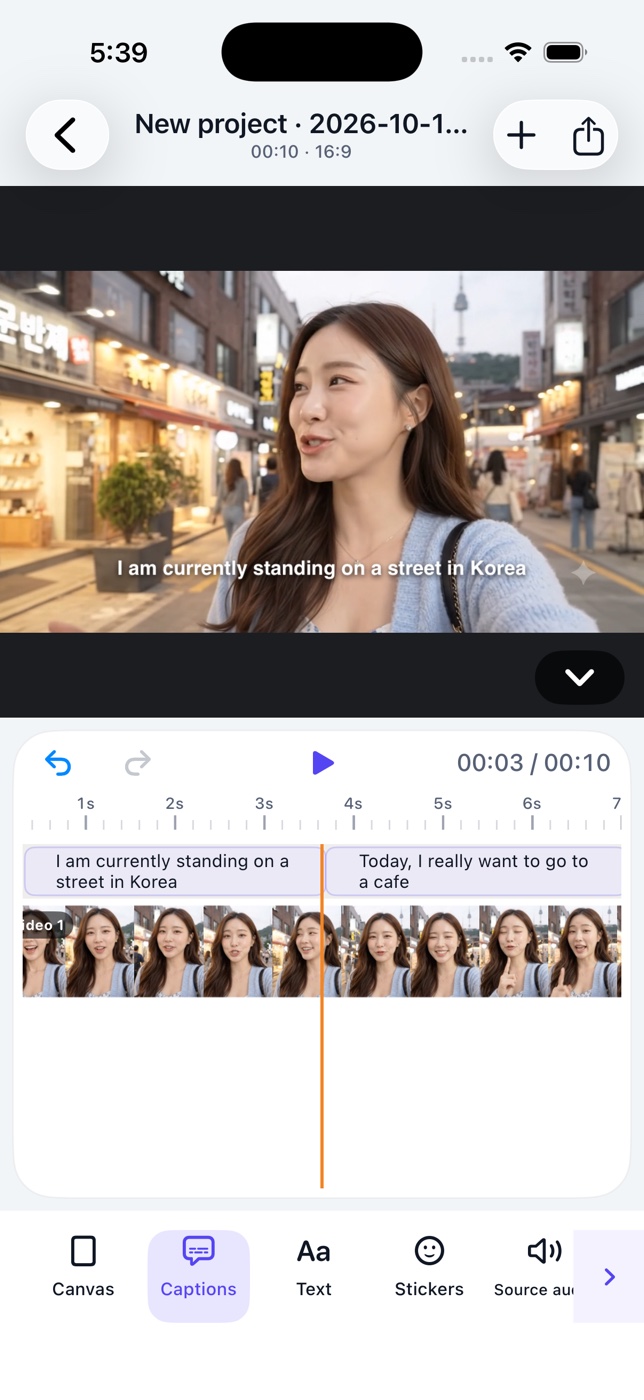
2. Generate automatic captions
Open Captions from the editing tools, or tap Create Captions when the project has no captions. Choose Spoken language, then tap Generate captions. Allow the requested speech permission. If Apple needs a language model, follow the download prompt and wait for the model to become available.
3. Correct the words and timing
Review each caption against the audio. Open a caption to correct misheard words, names, or punctuation. Adjust its start and end times when it appears too early or stays too long. Split long captions into readable lines, then play the video to check the result.
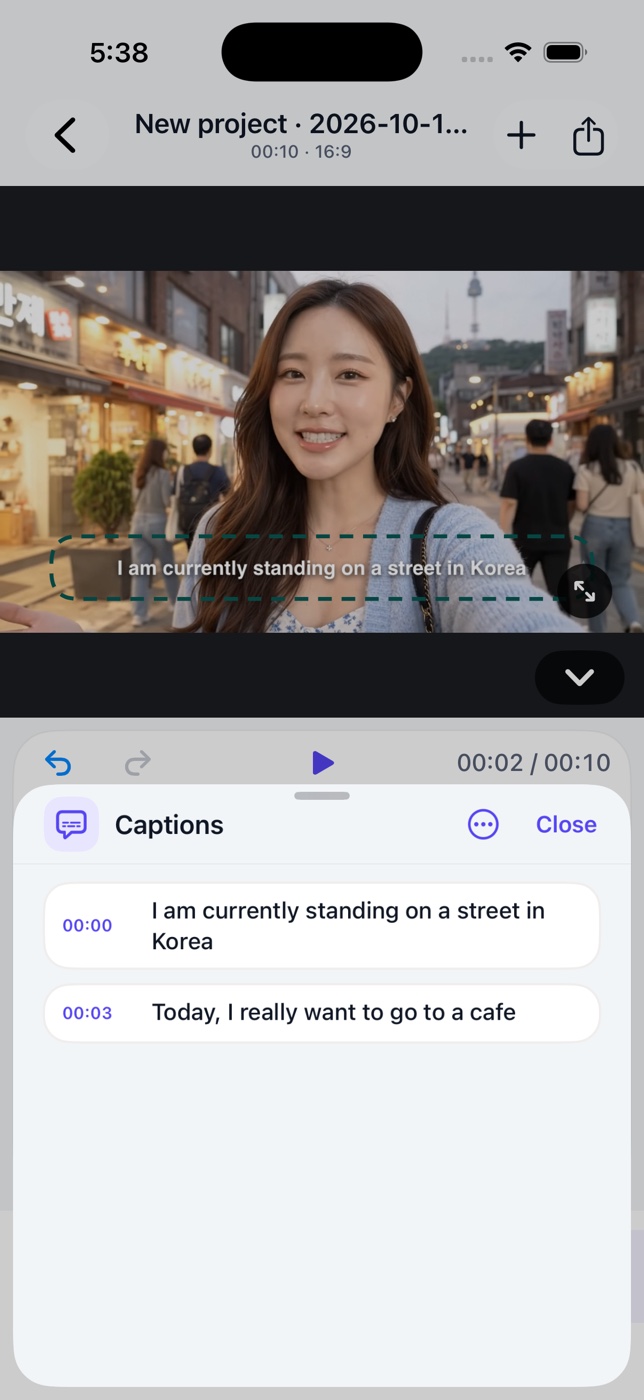
4. Choose a readable caption style
Adjust the font, size, color, and position using the caption styling controls. Check the preview against both light and dark parts of your video. Keep captions away from faces and the edges; safe-area guides can help when preparing a social video. To highlight each word as it is spoken, choose the Karaoke style.
How to make word-by-word karaoke captions5. Export and check your video
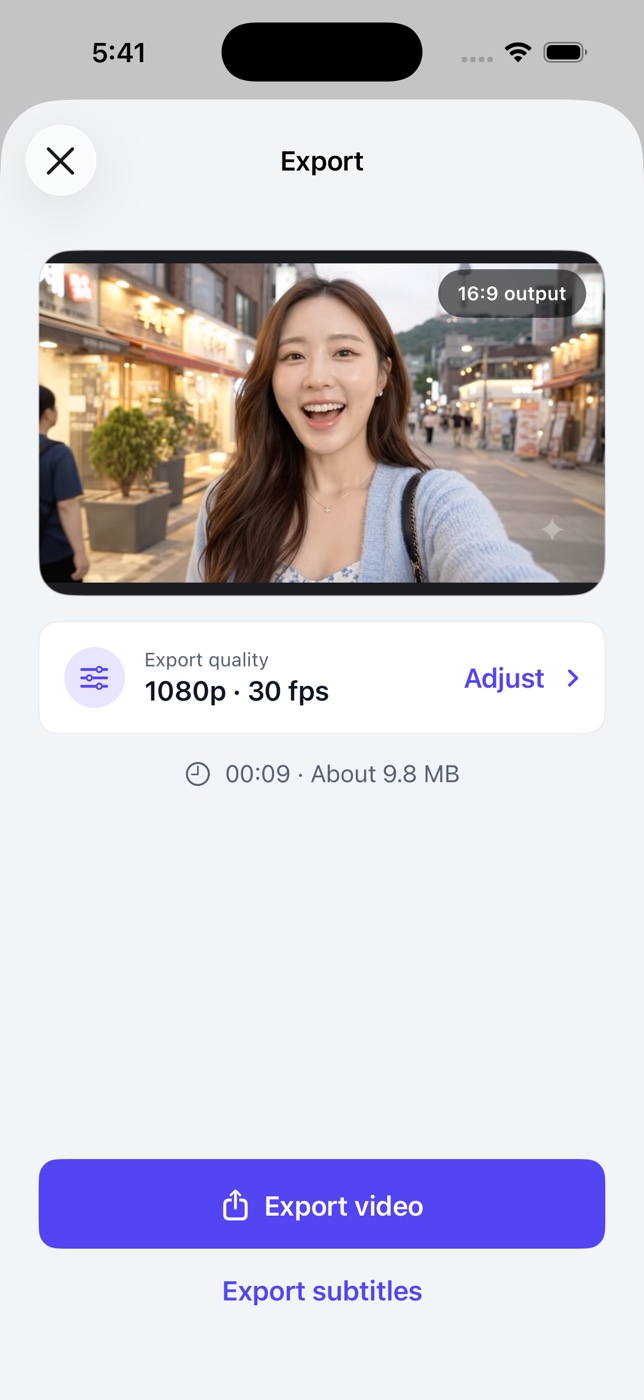
Tap the share/export icon at the top right of the editor. Choose your video quality and frame rate, then export. Save the MP4 to Photos or share it. Play the saved file and check the captions before posting. If you need a separate subtitle file, use Export subtitles to export SRT.
MP4 or SRT: which should I use?
Use MP4 when you want a video with visible captions ready to share. SRT is a separate text file with subtitle timing; it needs a compatible player or editor and does not preserve your caption font or visual style.
How to open, edit, and export SRT files on iPhoneIf automatic captions do not work
No captions appear
Check that the video contains audible speech and that Spoken language matches it. Music-only and silent clips do not provide speech to transcribe.
A language model is waiting to download
Check your connection and follow the app’s model status. Apple manages the model download. You can cancel and import an existing SRT file instead.
Words or timing are wrong
Automatic transcription can make mistakes with names, accents, overlapping voices, or background noise. Correct the text and timing before export.
The language is unavailable on this device
Check the app’s availability message. If on-device transcription is unavailable, import an SRT file or add captions manually.
Need help? Visit supportCan I create captions offline?
Speech recognition runs on-device when supported. Apple Photos may retrieve an iCloud video, Apple may download a speech model, and optional fonts use a network connection when you choose to download them. First-time setup may need a connection.
Read the Privacy PolicyComparing KakuCut with CapCut?
See the CapCut vs KakuCut comparison for differences in caption processing, offline preparation, and SRT export on iPhone.
Try it with one short clip
Generate the captions, make a few corrections, and export your first captioned video.
Download KakuCut on the App Store ↗